
Make checking out online easier and more secure than ever
Use Click to Pay with any PC Financial® card wherever you see the Click to Pay icon.
What is Click to Pay
Click to Pay is a digital payment service provided by Mastercard® that allows you to check out securely online with your PC Financial® cards with just one click.

Convenient
Click to Pay saves PC Financial® card details in one secure profile, allowing you to simply select the card you want to check out with.

Fast
Your card details will be auto filled for you. That means you can check out quickly with one click of a button.

Secure
Your card number, expiry or CVC code is never shared with online stores, ensuring safe transactions every time.
How to shop online with Click to Pay
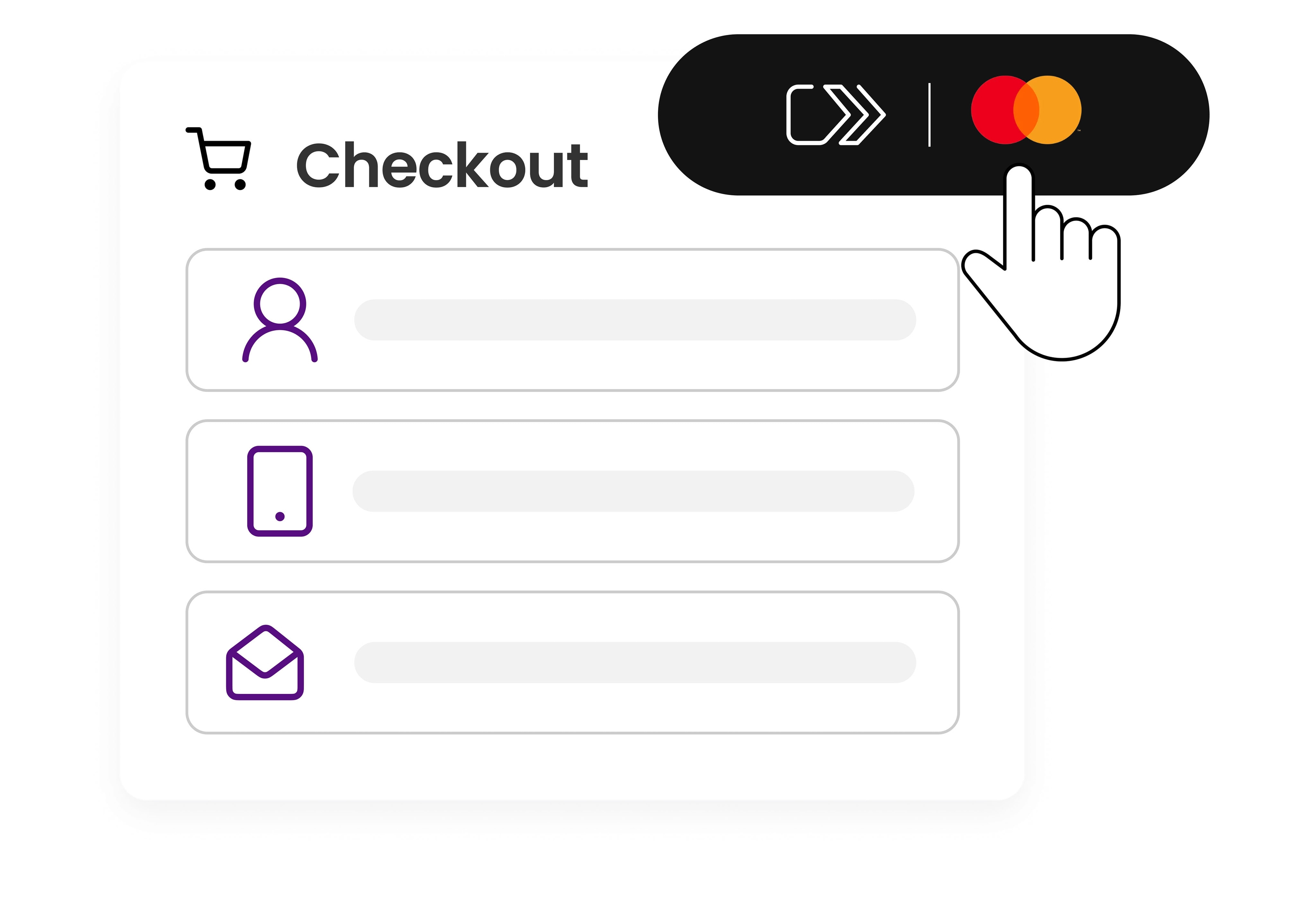
Enter your details
Enter the phone number and email associated with your PC Financial® account.
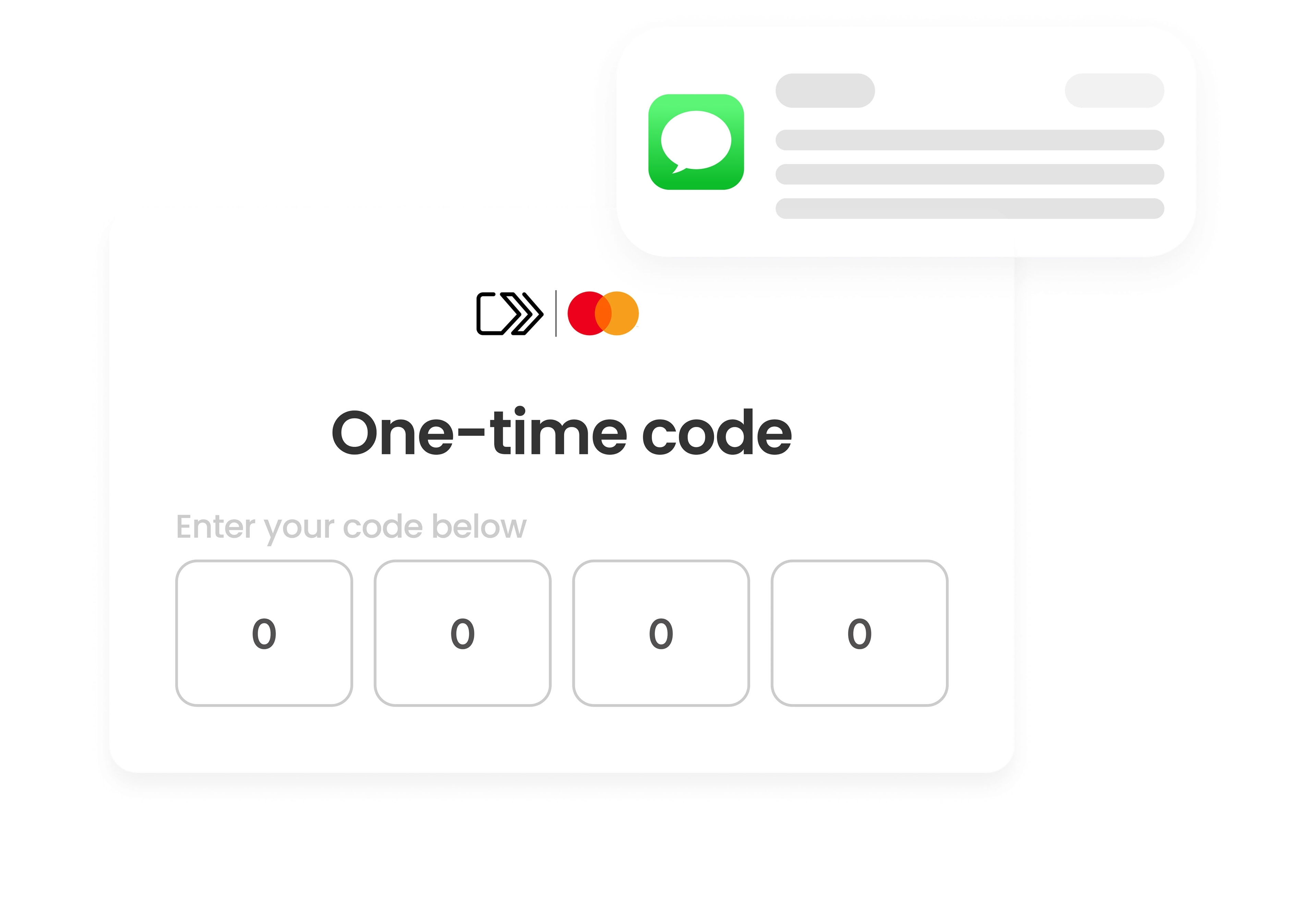
Confirm your identity
Mastercard® will send a code to your phone to confirm your identity.
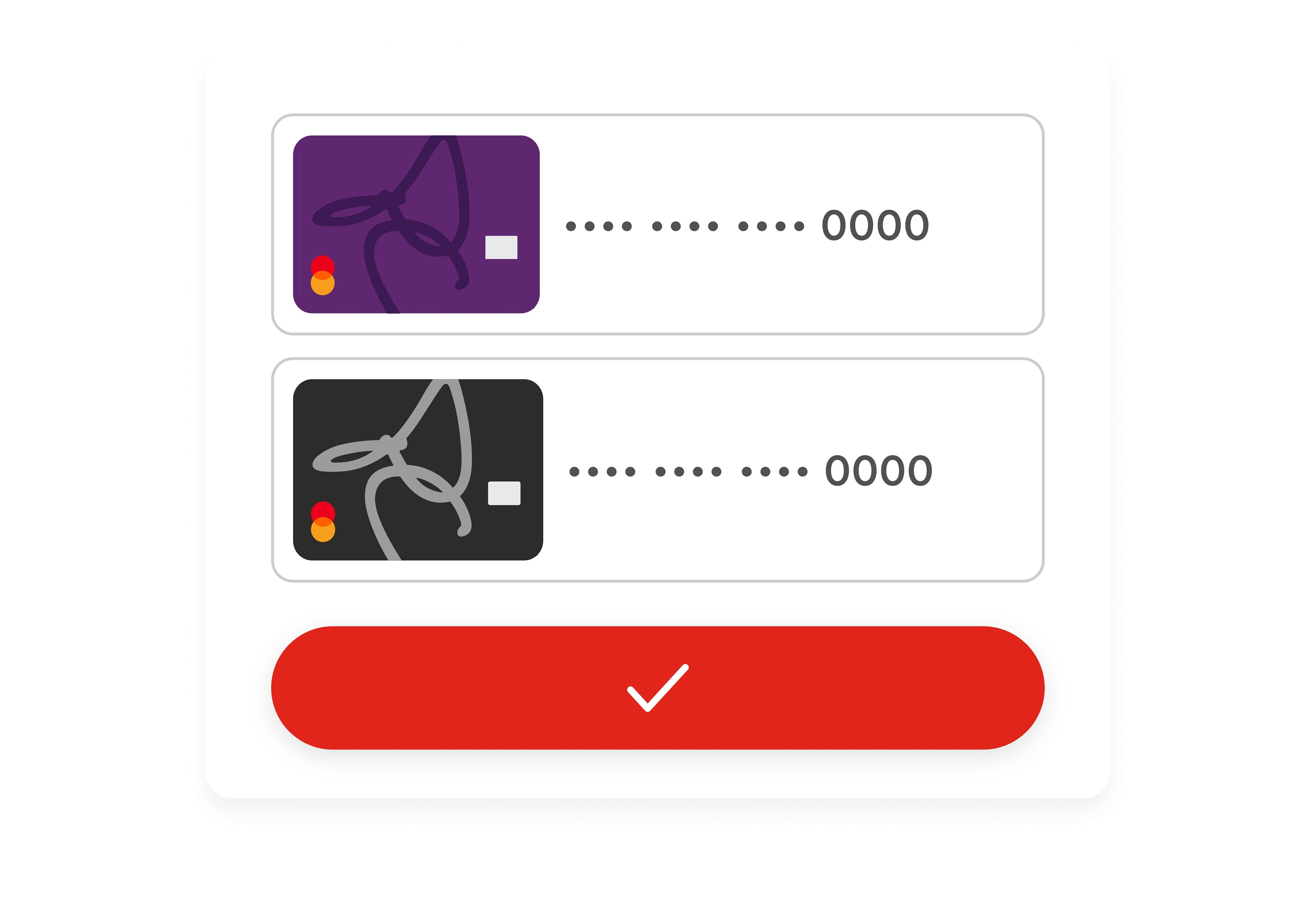
Select your card
Select the PC Financial® card you want to pay with and complete your purchase with Click to Pay.
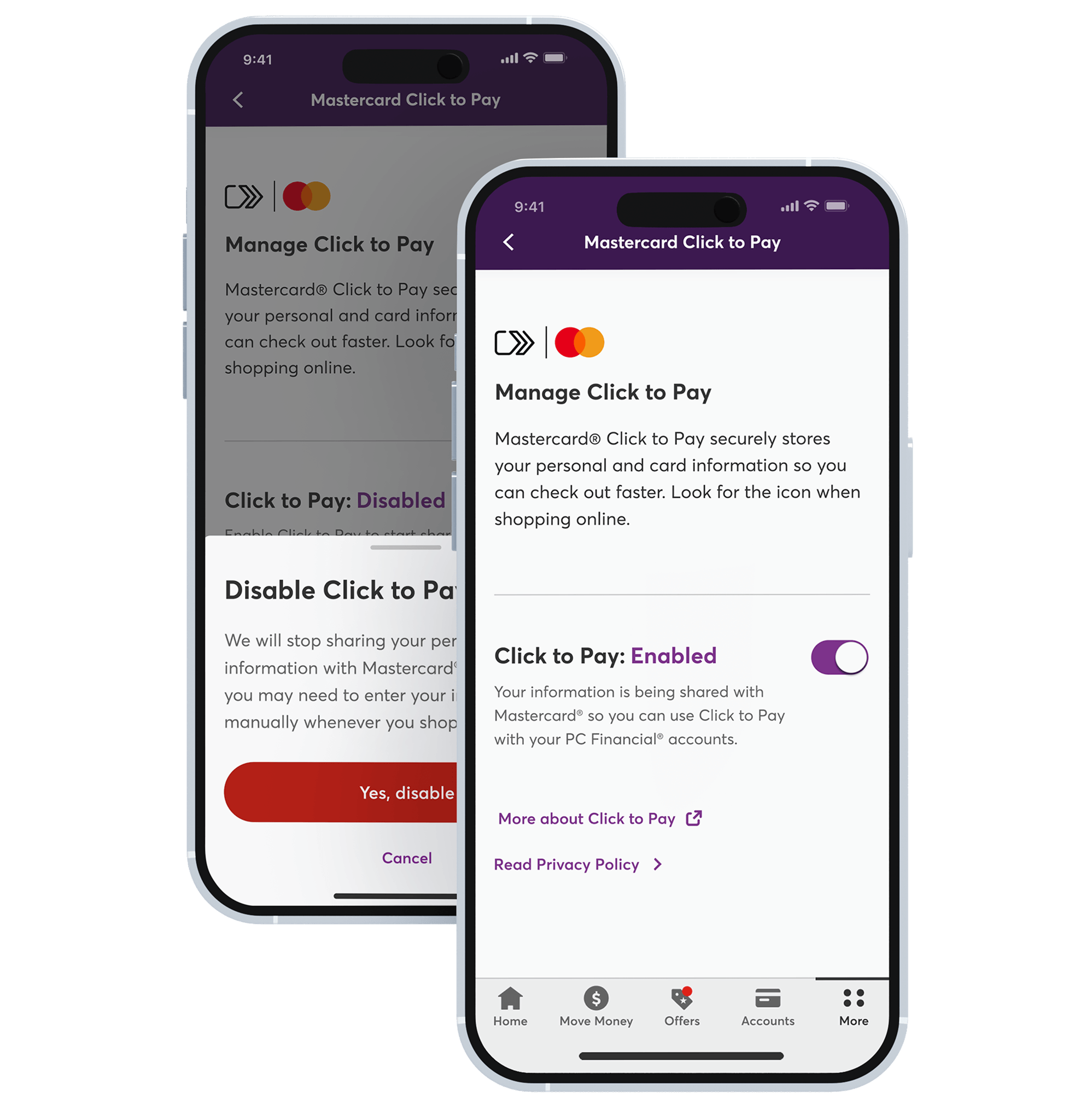
Manage your preferences easily
 Sign into the PC Financial® app or online banking
This is where you can manage your Click to Pay preferences at any time. Go to “My Profile” and select “Mastercard® Click to Pay”
Find your profile easily in the top right corner of your app or online banking. View and adjust your preferences using the toggle tool
Your status will read “enabled” or “disabled” depending on your choices.
Download to bank and collect
Our PC Financial® mobile app scores you on-the-go daily banking and PC Optimum™ access.


FAQs
What happens if I already set up Click to Pay somewhere else?
Where can I use Click to Pay?
How do I know Click to Pay is secure?
- Every purchase is monitored in real time through global network services by Mastercard®
- Your card number, expiry, and CVC are never shared with the online stores you shop at
- Merchants receive a unique token instead of your card details, which are stored securely off-site
- Multi-Factor Authentication for logins on new devices
- Zero Liability Protection for unauthorized transactions
- Mastercard® ID Theft protection for identity theft
Can I turn Click to Pay off if I don't want it?
- Open “Account Settings”
- Go to “My Profile”
- Select “Manage Click to Pay”
- Use the toggle button to disable Click to Pay
- You’ll receive confirmation when your preference is saved
What personal details will be used for Click to Pay?
- Full name
- Card number
- Contact information (email, phone number, billing address)
For more details visit our updated Privacy Policy.